How to Play Music in Discord: A Step-by-Step Guide
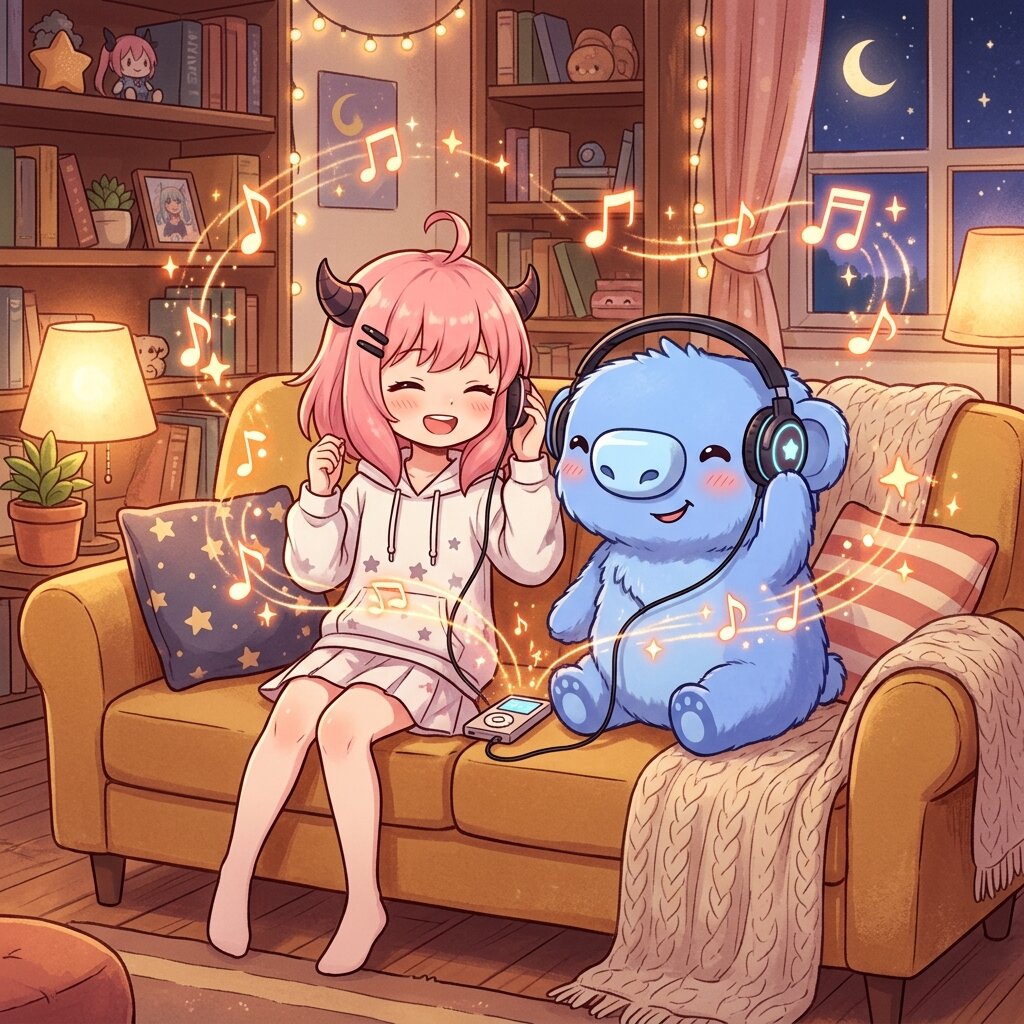
Listening to music with friends is one of the best ways to spend time on Discord. Whether you are gaming together, studying, or just chilling in a Voice Channel, a dedicated Discord music bot makes the experience seamless. In this guide, we will walk you through exactly how to play music in Discord using Anya, the cutest and most reliable Discord music bot.
Step 1: Invite Anya Bot to Your Server
Before you can start playing music, Anya needs to be a member of your Discord server. If she is already invited, you can skip to Step 2. Otherwise, follow these quick steps:
- Go to the official Anya website and click the **Invite** button (or navigate to anyabot.pro/invite).
- Log in with your Discord account if prompted.
- Select the server where you want to add Anya from the dropdown menu. (Note: You need Manage Server permissions on that guild).
- Click **Authorize** to grant the required permissions (like connecting and speaking in voice channels).
- Complete the Captcha, and Anya will join your server!
Step 2: Join a Voice Channel
Music bots need a voice channel to join and stream audio. Simply open your Discord client, navigate to your server, and click on any public **Voice Channel** (marked with a speaker icon 🔊) to join it.
Step 3: Play Music Using Slash Commands
Anya uses Discord's modern **Slash Commands** for quick, easy, and responsive interaction. Head over to any text channel where Anya has permissions to read messages, and type the play command:
/play query: Imagine Dragons Believer
Once you hit **Enter**, Anya will automatically join your current Voice Channel and start playing the requested song in high-fidelity audio! You can search for songs in two ways:
- Search Queries: Type any song title, artist, or album name (e.g.,
/play query: Linkin Park Numb). Anya will find the best match and queue it. - Direct Links: Paste a direct link to a song, playlist, or album from supported platforms like Spotify or SoundCloud (e.g.,
/play query: https://open.spotify.com/playlist/...).
Step 4: Manage Your Music Queue
Once the music is playing, you can easily control playback using these essential commands:
/pause— Temporarily pause the current track./resume— Unpause and resume playing music./skip— Vote to skip or immediately skip the current song./queue— Display the list of upcoming songs currently in the queue./stop— Stop the music, clear the queue, and make Anya leave the voice channel./volume— Adjust the playback volume (e.g.,/volume level: 50).
Advanced: Enable DJ Mode
If you want to prevent random users from constantly skipping songs or pausing the music, you can configure **DJ Mode**. Once active, only users with a role named DJ (or server administrators) will be allowed to use playback control commands.
You can set up your DJ role, custom prefixes, greeting messages, and search settings easily via the Anya Web Dashboard.
Troubleshooting Common Issues
- No Sound? Make sure you haven't muted Anya in Discord. Right-click Anya's avatar in the voice channel and verify that her user volume is turned up.
- Permissions Check: Ensure Anya's role has **Connect** and **Speak** permissions in the voice channel you are trying to use.
- Lag or Stuttering? Anya uses a robust multi-node regional demuxer system, but if your local connection is lagging, try changing the Discord voice region in channel settings.
Discussion (0)
Join the Discussion
Log in with your Discord account to share comments, feedback, and ask questions.
Login with Discord